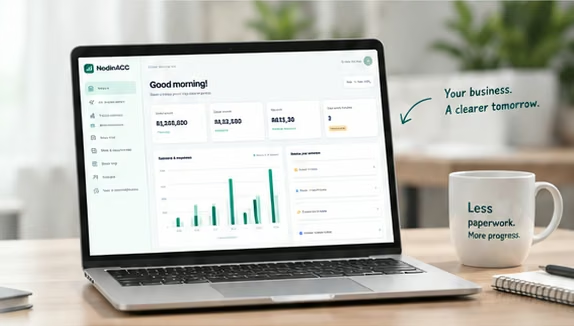
Both editions include the complete accounting workspace for your business. When you’re ready, the AI edition adds conversational accounting and automation to help keep your business moving forward.
Start with Free accounting. Ask us about the AI edition.
Illustrative product preview
Free
Full accounting workspace
Everything you need to run your accounting, keep your books organised and prepare for tax review.
Create and send invoices
Record bills and expenses
Work with bank accounts and statements
Financial reports and summaries
Thai tax tools and accounting records
Company setup and business settings
Start freeFull accounting, without the AI edition.✦ AI edition
AI
Everything in Free, plus your AI accountant
An AI accountant that understands your connected records, finds what you need and helps you take action.
Everything in Free
Chat with your AI accountant
Find and request missing documents
Explain your numbers in plain language
Automate repetitive accounting tasks
Month-end assistance and review support
Talk to salesContact us for pricing. See how AI can work for your business.
COMPARISON
What changes with AI?
Same accounting workspace. A faster, easier way to get things done.
◯ Manual (Free)● AI-assisted (AI edition)
Accounting tasks in Free and the AI edition
Task
Manual (Free)
AI-assisted (AI edition)
Find missing documents
Search your records manually
→
Ask your AI accountant to find and request them
Understand your numbers
Read reports and review your results
→
Get clear, conversational explanations
Reconcile transactions
Match and review manually
→
Let AI help identify and suggest matches
Prepare for month-end
Checklists and manual reviews
→
Get guided assistance and automated checks
Stay on top of requirements
Track documents and requirements
→
Get guidance and help preparing records
FREQUENTLY ASKED QUESTIONS
Pricing questions?
Here are some quick answers. For more help, we’re here for you.
How much does the AI edition cost?⌄
Contact our team for the current AI edition pricing and the automation included. We have not published a fixed AI subscription price on this page.
What is included in Free?⌄
The full accounting workspace. Conversational automation and AI document assistance are in the paid AI edition.
Can I switch from Free to AI later?⌄
Start with Free accounting and speak to our team when you are ready to add AI. Both editions use the accounting workspace.
Is there a long-term contract?⌄
Ask our team to confirm the current subscription, renewal and cancellation terms before purchasing the AI edition.
What happens to my data if I cancel?⌄
Contact support to confirm the export, retention and account closure terms that apply to your subscription before cancelling.
Your choiceStart Free, add AI later
Your data stays yoursKeep control of your records
Built for ThailandAccounting for your business
READY TO GET STARTED?
Move your accounting forward today.
Start free and see how your AI accountant can support your business.
Start freeFree accounting. Add the paid AI edition when you’re ready.
Less paperwork. More progress.
Start with the setup wizard in your accounting workspace. The public examples do not change your account.
Sign in to NodinACC using your existing account.
Choose your business and the modules you need.
Review your company details, accounts and invoice preferences.
Bring in your opening records and supporting documents.
Review your first transactions before continuing.
Start with Free accounting. Contact the team when you are ready to add the paid AI edition.
A clear starting point is to keep sales records, purchase invoices, bank statements and relevant certificates together.
Choose the accounting period you are preparing.
Check that supporting documents are complete.
Resolve missing details with the issuer.
Review the working papers with your accountant.
Use the required official submission process and retain its acknowledgement.
Tax treatment and filing dates depend on your circumstances. See the Thai Revenue Department for official information. Prepared records are not evidence that a return has been filed.
Bring the period’s sales and purchase records together, with the relevant tax invoices and supporting details. Reconcile the working papers to your books and review exceptions with your accountant.
This guide does not set a VAT rate or a filing deadline. Confirm the applicable treatment and current requirements in the Revenue Department’s VAT guidance.
Use this as an organisational checklist, not a substitute for professional tax review.
Sales records and supporting invoices for the period.
Purchase records and supporting tax invoices.
Adjustments and exceptions that need review.
A reconciliation between the working papers and your books.
The official acknowledgement after the required filing is completed.
Check the current filing requirements and dates with your accountant and the Revenue Department. Preparing a report in the workspace is not the same as submitting it.
Keep the payment details, payee information, relevant certificates and supporting documents together. Resolve missing or inconsistent details before review.
Organised digital records help your preparation. A stored PDF, a prepared invoice and an officially submitted document are not interchangeable.
Confirm the required format, registration and submission process through the official Revenue Department e-Tax service. This website does not submit documents to that service.
The month tiles on this page illustrate an accounting review workflow. They are not a statutory filing schedule.
Check the current deadline for the relevant return, filing channel and period with the Revenue Department and your accountant. Keep preparation, review and submission as separate tasks.
Start with the correct business account and reporting period. Bring in the statement using the options available in your accounting workspace.
Check the opening and closing balances.
Review imported transactions for duplicates.
Match payments to the appropriate invoices or expenses.
Investigate unmatched entries instead of forcing a match.
Keep the original statement with your supporting documents.
The bank names and connections shown in product illustrations are examples, not a promise that a specific live bank connector is available.
Download an editable HTML template, open it in your browser, replace the sample details and print it. It is a starting layout, not a validated tax invoice.
Check the issuer details, customer information, numbering, required wording, tax treatment and amounts with your accountant before issuing a real document.
The public website now has separate pages for How it works, Thai tax, Features, Industry packs, Pricing and Resources, based on the approved NodinACC design.
The demonstrations explain the product without accessing your private accounting records. The existing sign-in and accounting application are separate from these public pages.
Use the organisation options available in your accounting workspace to structure your business. Check which company and location a record belongs to before importing or reviewing it.
Ask support to confirm the current multi-company and multi-location options for your account. Public illustrations do not add businesses or change your configuration.
Give each person access appropriate to their role. Review who may view records, edit transactions or approve changes in your accounting workspace.
Only an authorised administrator should change team access. No permissions are changed through this public page.
NodinACC is part of the Nodin platform alongside NodinPMS and NodinPOS. Review the integration options in your workspace before connecting a business system.
Check the company, account mapping and transaction flow, then review the resulting records. The public product diagram does not establish a connection or transfer data.
Keep the supporting document and review context with an accounting entry. When checking changes, review who made them, what changed and whether the change was authorised.
Use the history and audit tools available in your workspace. This public site does not modify or certify your audit records.
Review the backup options and status in your authenticated accounting workspace. Confirm what is included, when it was created and the restoration procedure before relying on a backup.
This public feature card does not create a backup or start a restore. Contact support for the current retention and recovery details.
The walkthroughs, search and industry selector run in your browser using example content. They do not read your accounting records or submit document requests.
Contact and subscription links open your email application so you can review and send your message. Signing in takes you to the existing NodinACC account flow.
For the privacy information applicable to your account and services, contact hello@nodin.cloud.
Free is the accounting workspace. AI is the paid conversational automation edition. Contact the team for the current AI pricing, availability and applicable subscription terms before purchasing.
Public previews use illustrative data. They are not accounting, tax filing or banking confirmations. Ask support for the account terms that apply to your business.
Demonstration only — no supplier receives this message.
To: supplier@example.invalid
Subject: Missing invoice
Dear supplier,
Could you please send the missing invoice for last month? We are preparing our accounting records for review.